Snowbirds: keeping your TV setup working across two homes
This piece is for viewers who spend part of the year at one address and the rest somewhere else — a northern house in summer, a southern one in winter, or any variation on that rhythm. By the end you will know what gear to pack, how to handle two different internet connections, and why a single subscription can follow you without any extra paperwork.
The short version: because IPTV Streaming Services delivers television over your internet connection rather than through a dish or a cable contract tied to one address, the same account works wherever you can plug in a router or connect to Wi-Fi.
Frequently asked questions
- Can I use the same subscription at both homes?
Yes. Your account is tied to your login, not to a fixed address. As long as you are within the device limit of your plan, you can sign in at both locations.
- Do I need to contact support when I move to the second home?
No. There is no address registration for this type of service. Take your device, connect it to the internet at the new location, and sign in with the same credentials.
- What if the second home only has slow or shared Wi-Fi?
Run a quick speed test on your phone first. If the connection handles video calls comfortably, it will usually handle streaming television. For shared networks with a login portal, you may need to register your device's MAC address or use a small travel router you have already authenticated.
- My second home has a MAG box left by a previous owner. Can I use it?
Possibly, if it is in working order and connected to the internet. You enter your portal address in the MAG box's own settings menu. The box does not need to be the same model you use at home — the portal login works across MAG devices.
- What if I forget my login details?
Check the email that arrived after you first paid — it contains your username, password and server address. If you cannot find it, search your inbox for the address you used at signup, or contact support through the site.
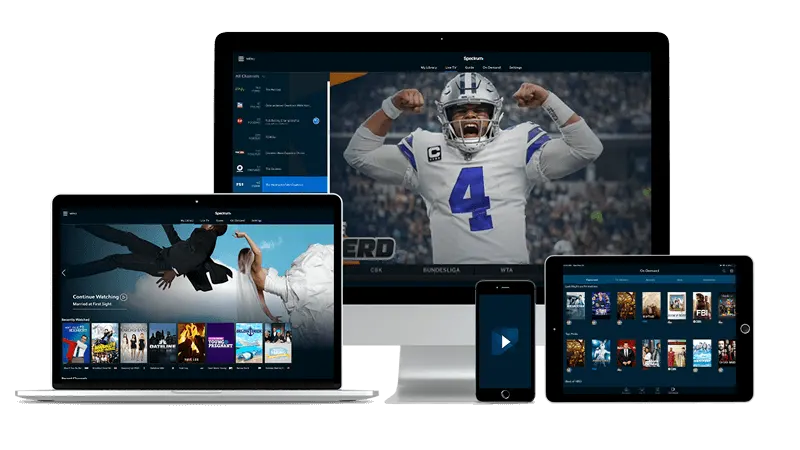
What you actually need to bring
The most portable setup is a streaming stick — a Fire TV Stick or an Android TV device — because it plugs into any HDTV's HDMI port and runs the same player app you already configured at home. Pack it the way you would pack a phone charger. If the second home already has a smart TV, check whether it runs Android TV or Google TV; if it does, you can install your player app directly and skip the stick.
The one thing you do not need to bring is a new subscription. Your login details arrived by email when you first paid, and those same credentials work on any supported device at the second location. Keep that email somewhere easy to find — it is all you need to sign in on an unfamiliar TV.
A short HDMI extender cable is worth throwing in the bag. Many TV wall mounts leave almost no clearance behind the set, and a streaming stick pointing straight out from a recessed port can stress the connector or block ventilation.
Getting the internet side right at the second home
Two situations come up most often. The first is a second home with its own broadband router — a fixed connection you pay for year-round or activate on arrival. In that case, connect your streaming stick or TV to that router exactly as you would at your primary address: Wi-Fi works fine for most viewing, though an ethernet adapter gives you a more stable signal if the router sits in another room.
The second situation is a rented condo or a seasonal community where you rely on shared or managed Wi-Fi. Here the common obstacle is a login portal — the kind where the router bounces new devices to a webpage asking you to accept terms before it lets traffic through. A streaming stick cannot click that page on its own. The fix is to log in from a phone or laptop first, then check whether the network allows you to register your stick's MAC address so it connects automatically. Some managed networks do; others require a workaround such as connecting the stick through a travel router you have already authenticated.
Whatever the connection type, run a quick speed check on your phone before you set up the TV. A connection that handles video calls will generally handle streaming television without trouble.
Installing the player app at the new location
If you brought your own streaming device and it was already set up at home, the app is already there. Open it, check that it still shows your server details, and you are done.
If you are setting up on a fresh device — a smart TV at the second home, or a replacement stick — download your preferred player from the device's app store. IPTV Smarters Pro and TiviMate are both available on Android TV and Fire TV; IBO Player is another option depending on what your device supports. On a MAG box you enter the portal address directly in the box's own menu rather than installing a separate app. Either way, you will need the same three fields: a username, a password, and a server address — all in that original confirmation email.
If you share the account with family members watching at the primary home while you are away, check your plan's device limit before you add a new one. Plan details and terms are listed on the plans page of this site.
Sports and other live channels away from home
One reason snowbirds bother with this setup is that live sports do not pause because you have changed zip codes. NFL Sundays, NBA nights, UFC cards — the channel lineup travels with the account. If you have not explored how channels are organized in the player, it is worth reading about finding UFC Fight Night channels in your channel guide before you sit down in front of an unfamiliar TV on fight night.
For households where someone wants to browse cooking and lifestyle content while another room has the game on, the same logic applies: finding cooking and food channels in the channel guide walks through how channel categories are usually laid out, which saves time when you are working with a player you just installed.
If you are setting up a TV with a new remote at the second home, the pairing process varies more than most people expect. TV remote pairing 101: what American viewers should know covers the most common scenarios, including IR remotes that need a manual code lookup.
Power, plugs and a few things worth checking on arrival
If your second home is in the continental United States, power is a non-issue — same voltage, same plugs. Travel outside North America and the situation changes: check that your streaming stick's power adapter handles the local voltage before you plug it in. Most modern USB-C adapters do, but a quick glance at the fine print on the brick is faster than replacing a device.
On arrival, give the router a few minutes after you power it up before you try to stream. Routers that have been off for months sometimes take longer than usual to establish a stable connection while they update their firmware. If the picture stutters in the first few minutes and then settles, that is usually why.
Finally, if the second home's TV has been sitting unused, check the picture and sound settings. Manufacturers ship TVs with motion smoothing and noise reduction turned on, and both can make streaming content look odd. Turn them off and the picture generally looks better without any other adjustment.